
Once you have a game saved as a PGN file, Lichess is one of the fastest places to bring it back to life. You can replay every move, flip the board, get free computer evaluation, and share a link with a friend or coach. To import a PGN into Lichess, navigate to lichess.org/paste (or select Tools → Import game in the main menu), paste your PGN text into the box or upload your .pgn file, and click Import game. Lichess parses the moves, creates a dedicated game page with a permanent URL, and provides free Stockfish computer analysis. If you only want a temporary scratchpad without creating a permanent URL, use the Analysis board at lichess.org/analysis; if you have a multi-game tournament file or want to organize and annotate games with arrows and comments, import into a Lichess Study instead. If the game is still on a paper scoresheet, a chess PGN converter turns it into a PGN you can paste here.
Choosing the Right Import Method
Lichess provides three distinct ways to load PGN files, each suited for different tasks:
| Method | Access Path | Saves Game? | Multi-Game Handling | Best For |
|---|---|---|---|---|
| Import Game | lichess.org/paste | Yes (permanent URL) | Parses game 1 only (silently ignores subsequent games) | Sharing a completed game with a coach or friend |
| Analysis Board | lichess.org/analysis | No (session only) | Parses game 1 only | Quick scratchpad replay and local engine checks |
| Lichess Study | Community → Studies | Yes (saved to account) | Splits each game into a separate chapter | Multi-round tournaments, coaching lessons, and annotated repertoires |
What You Need Before Starting
To import cleanly, your file must contain standard Portable Game Notation (PGN): header tags enclosed in square brackets, a blank line, and movetext in Standard Algebraic Notation (SAN) ending with a result token (1-0, 0-1, 1/2-1/2, or *). If you are unfamiliar with the tag structure or formatting rules, What is PGN breaks down the Seven Tag Roster in detail.
Here is a minimal, fully valid single-game PGN:
[Event "Club Championship"]
[Site "Local Club"]
[Date "2026.05.14"]
[Round "1"]
[White "Player, A"]
[Black "Player, B"]
[Result "1-0"]

1. e4 e5 2. Nf3 Nc6 3. Bc4 Bc5 4. c3 Nf6 5. d4 exd4 6. cxd4 Bb4+ 7. Bd2 Bxd2+ 8. Nbxd2 d5 9. exd5 Nxd5 10. Qb3 Nce7 11. O-O O-O 12. Rfe1 c6 13. a4 1-0
Method 1: Import Game (lichess.org/paste) for a Permanent URL
This is the primary method when you want a permanent link to share with an opponent, student, or tournament director.
- Open lichess.org/paste, or navigate to Tools → Import game from the main menu.
- Paste your PGN text into the input box, or click Browse to upload your
.pgnfile. - Click Import game.
Lichess generates a permanent game page with its own URL, identical to a game played natively on the site. Anyone can view the game without creating an account. If you are signed into Lichess during import, the game is also archived under your user profile so you can revisit it later.
Single-game behavior: Pasting a multi-game file into lichess.org/paste only parses the first game. The parser stops at the first game result and silently ignores subsequent games without showing an error warning. To import multi-game files, use Method 3.
Method 2: Paste onto the Analysis Board (lichess.org/analysis)
Use the Analysis board when you want an immediate sandbox to test tactical variations or consult Stockfish without publishing a permanent game URL.
- Open lichess.org/analysis (or open Tools → Analysis board).
- Locate the PGN input field:
- Desktop browsers: Scroll directly beneath the board. The PGN text box is underneath the board and controls, rather than beside the move list.
- Mobile browsers and narrow screens: Responsive layouts shift the input card lower down the page below the move list. Scroll down and look for the collapsible FEN / PGN card or tab to expand the text box. Note that navigation tabs and menu labels may shift across site updates.
- Paste your PGN into the box and press Import PGN.
- Step through the game using your arrow keys or on-screen controls.
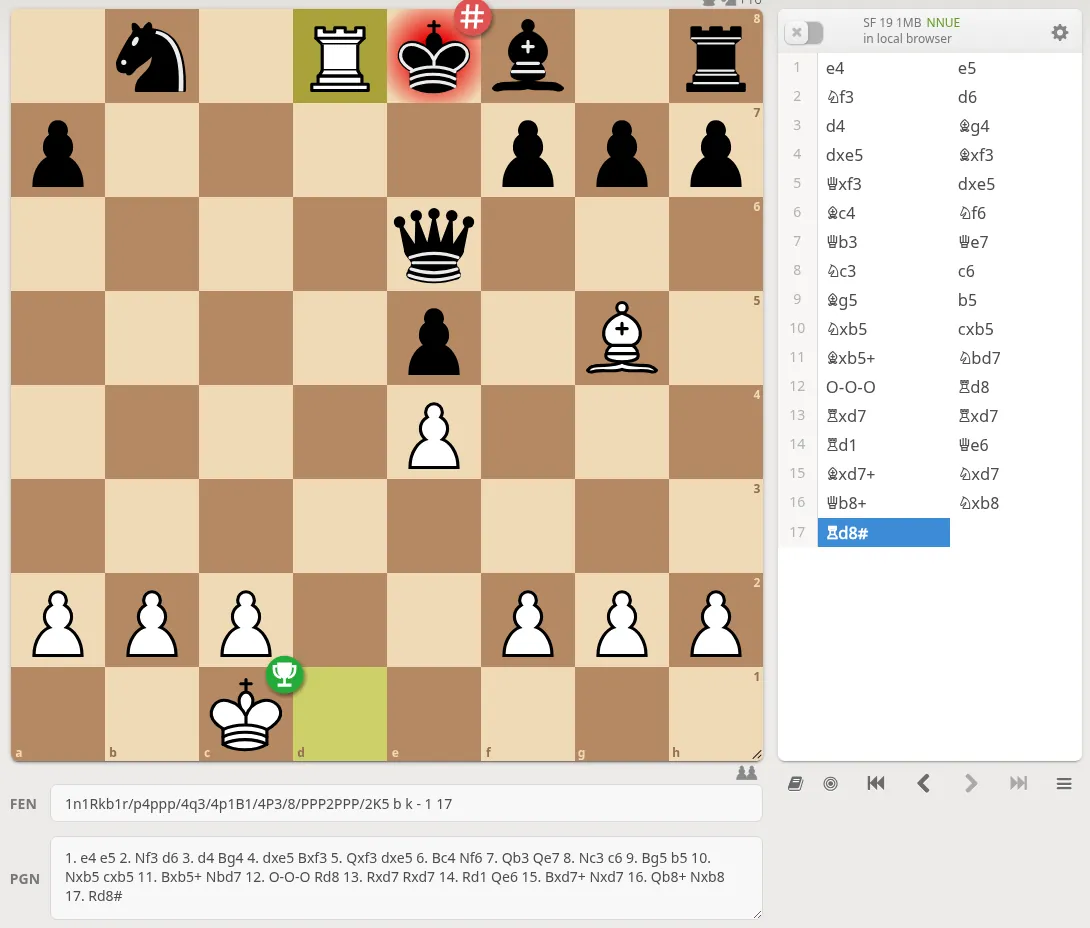
We tried this signed out on 2026-09-30 with the 1858 Opera Game (the PGN is in chess PGN converter). The PGN box sat under the board, labeled PGN, with a FEN field above it. After Import PGN, Lichess loaded all 33 plies and jumped to the final position (the URL ended in #33, the ply number), with the move list on the right and the local Stockfish toggle above it.
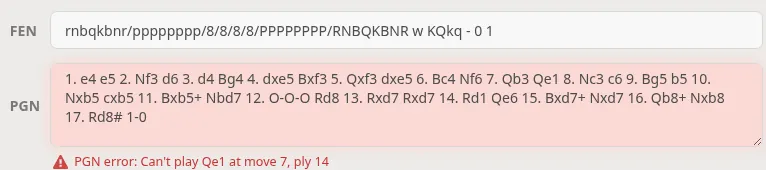
When a move is illegal, nothing loads. We changed 7... Qe7 to 7... Qe1, the way a sloppy 7 on our demo scoresheet reads, and Lichess kept the starting position and printed the move and ply under the PGN box:
Two more things we saw in the same session: castling written with zeros (0-0-0) loaded without complaint, and German piece letters (1. c4 Sf6 2. Sc3) produced "Can't play c3 at move 2, ply 3", one move after the real problem, which suggests Lichess read Sf6 as the pawn move f6.
Nothing on the Analysis board is saved to your account unless you click the option below the board to import the game, which passes it to Method 1.
Turn on Computer Analysis
On both an imported game page and the Analysis board, you can request computer analysis:
- Click Request computer analysis beneath the move list.
- Lichess runs Stockfish over the game on its server cluster, generating an evaluation graph, move accuracy scores, and mistake/blunder markers.
- For a structured post-game review routine, see analyzing chess games from scoresheets.
Server analysis quotas: Server evaluations rely on shared community compute resources and have fair-use daily rate limits per account. If you import a large batch of tournament games in one session, you may temporarily hit this server analysis cap. For batch reviews, toggle the local in-browser engine on the Analysis board for move-by-move evaluation, and reserve full server analysis requests for your most critical games.
Method 3: Import a PGN into a Lichess Study
A Study is the best choice when organizing game archives, preparing coaching material, or importing multiple games at once. You must be signed into a free Lichess account.
- Go to the Study section (under Community → Studies or Learn → Study in the main menu) and click the green + button to create a new study.
- Inside your study, click Add a new chapter.
- In the chapter modal, select the PGN tab.
- Paste your PGN text or upload your
.pgnfile, then click Create chapter.
Studies handle multi-game PGN files automatically: pasting a file containing multiple games splits each game into its own distinct chapter. Inside each chapter, you can right-click squares to highlight them, drag with the right mouse button to draw arrows, and add text comments to explain critical turning points. From scoresheet to Lichess study details this coaching and archive workflow.
Getting a PGN from a Paper Scoresheet
Most import failures stem from typos introduced while typing moves from a paper scoresheet into a text file. Hand-transcribing forty move pairs under tournament time pressure frequently leads to illegible notation, transposed numbers, or impossible moves:
- Writing
Ng5when a pawn already occupies g5 creates an illegal move that stops Lichess from parsing the rest of the game. - Castling written with zeros (
0-0, which is how FIDE writes it on paper) loaded fine in Lichess in our test, but some stricter PGN tools expect the letterO-O. - Omitting a disambiguation file (such as
Nbd7written asNd7when two knights can jump to d7) makes the move ambiguous and invalid.
Instead of retyping every move manually, ScanChess digitizes the physical sheet from a photo. The scanner reads the handwritten notation, replays each move on an internal board to verify chess legality, and flags illegal moves in red and doubtful ones in amber. You resolve any flagged moves on screen and export a clean PGN before importing. Convert a handwritten scoresheet to PGN covers the scanning process step by step, and how to read a chess scoresheet explains how to decipher difficult symbols and duplicate sheets.
Troubleshooting Common Import Errors
| Symptom | Cause | Solution |
|---|---|---|
| "PGN error: Can't play … at move N, ply M" | An illegal move, impossible piece destination, or malformed syntax. | Lichess validates legality from move 1. A single illegal move stops the entire import; the message names the move and ply (in our test: "Can't play Qe1 at move 7, ply 14"). Check the move in our free PGN validator to find the first invalid ply, or replay it in the PGN viewer. |
| Only the first game loads | A multi-game PGN was pasted into lichess.org/paste or the Analysis board. | Both pages parse only the first game and silently truncate the rest without warning. Use Method 3 (Study) to import multi-game files into separate chapters. |
| Cannot find PGN input on mobile | Responsive layout collapsed the input below the viewport. | Scroll below the board and notation list. Look for the collapsible FEN / PGN panel or tab and tap to expand it. |
| Missing player names or date | Missing, misnamed, or improperly quoted header tags. | Headers require straight double quotes (e.g., [White "Player, A"]). Curly quotes copied from word processors break tag parsing. |
| Server analysis unavailable | Account reached its daily server evaluation quota. | Turn on the local browser engine toggle on the analysis board to evaluate positions without consuming server quota. |
Importing a clean file takes seconds. The primary hurdle is getting an accurate PGN from handwritten sheets without transcription errors. Using the ScanChess scanner to verify legality on the scoresheet before export ensures your PGN imports cleanly into Lichess on the first try.