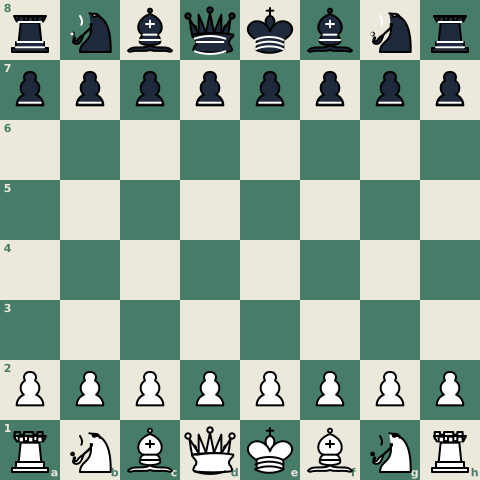

To import a PGN into Chess.com, open chess.com/analysis, locate the single-line input box labeled Paste a PGN, FEN, or study link… at the top of the Analysis panel, paste your PGN text (or upload your .pgn file), and click Load. The moves load directly onto the interactive board for immediate replay and engine evaluation. If you want to store the game permanently in your account archives, import it through the Library at chess.com/library instead. If the game is still on a paper scoresheet, a chess PGN converter turns it into a PGN you can paste here.
Choosing Your Import Method
Chess.com provides two primary paths for loading external PGN files, depending on whether you need a quick temporary review or permanent storage:
| Method | Access URL | Saved to Account? | Best For |
|---|---|---|---|
| Analysis Board | chess.com/analysis | No (browser session only) | Immediate engine review, tactical checks, move-by-move evaluation |
| Library | chess.com/library | Yes (archived in account) | Building personal game databases, archiving tournament rounds |
Method 1: Load the PGN on the Analysis Page
The Analysis board is the fastest route to evaluate an individual game with Stockfish. In our test on 2026-09-30, this worked completely signed out:
- Open chess.com/analysis. On a first visit, a modal titled "Game Review & Analysis" appears with an "Ok" button that covers the board; click "Ok" to dismiss it.
- Locate the single-line text box at the top of the Analysis panel labeled Paste a PGN, FEN, or study link…. The Load button next to it stays disabled until you paste text into the box. A hidden file input accepts
.pgnand.txtfiles ("Upload a PGN File"). - Paste your full multi-line PGN text into the single-line box.
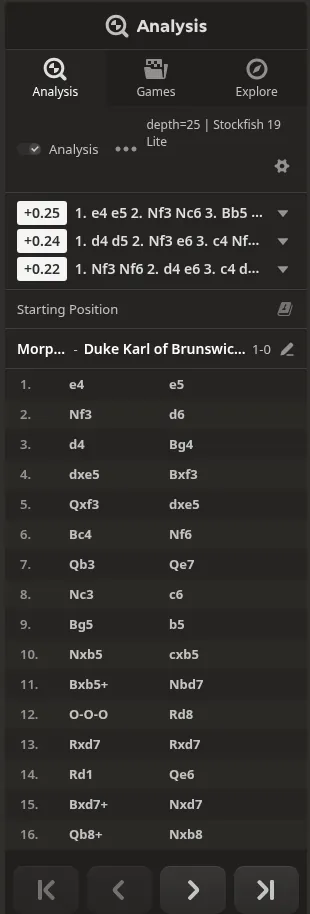
- Click Load. When we pasted the full 1858 Opera Game, player names from the tags appeared, the move list showed all moves ending with 1-0, and the board stayed on the starting position ("Starting Position") rather than jumping to the end.
- The engine lines (Stockfish 19 Lite) started running on their own immediately. Step through the moves using the arrow keys to confirm the entire score imported properly.
Running Engine Analysis
Once the game is loaded:
- Follow the engine lines and evaluation bar (Stockfish starts on its own upon loading, or you can run Game Review).
- Click any move in the move list to jump straight to critical tactical swings. For a structured post-game study routine, see analyze chess games from scoresheets.
Method 2: Import into Your Library
If you want the game saved to your Chess.com account so you can revisit it later, use the Library.
- Open the Library page at chess.com/library.
- Select Import.
- Paste your PGN text or upload the
.pgnfile. - Save the entry. The game is stored in your Library collection and can be reopened in Analysis at any time.
Games you played on Chess.com itself are already in your archive there. To see a year of them in numbers, enter your username in Chess Wrapped.
Troubleshooting Common Import Errors
Most import failures happen because a PGN violates standard syntax rules or contains invalid chess notation.
| Symptom | Cause | Solution |
|---|---|---|
| Ambiguous move error | Two identical pieces can reach the target square, but no departure file/rank was specified. | Disambiguate the move in SAN by adding the departure file or rank (e.g., Nbd7 instead of Nd7). |
| Invalid move error | A move is illegal in that position or has a typo (such as a pawn moving to an occupied square). | Replay the position to verify piece coordinates. Test the game in the free PGN validator or inspect it in the PGN viewer. |
| Castling with numeric zeros | PGN contains 0-0 or 0-0-0 instead of O-O or O-O-O. | In our test, Chess.com accepted 0-0-0 without error and converted it to O-O-O automatically. |
| Only part of the game loads | Truncated text, missing result token, or no blank line between headers and moves. | Ensure an empty line separates the tags from movetext, and check that the game ends with a valid result (1-0, 0-1, 1/2-1/2, or *). |
| Missing player names or tags | Typographical errors or curly quotation marks in header tags. | Use straight double quotes (" ") for tag values, following the Seven Tag Roster described in what is PGN. |
Example: Fixing an Ambiguous Move
Under Standard Algebraic Notation (SAN) rules, if two identical pieces can move to the same square, the departure file or rank must be included. For example, consider move 11 of the 1858 Opera Game:
1. e4 e5 2. Nf3 d6 3. d4 Bg4 4. dxe5 Bxf3 5. Qxf3 dxe5 6. Bc4 Nf6 7. Qb3 Qe7 8. Nc3 c6 9. Bg5 b5 10. Nxb5 cxb5 11. Bxb5+ Nbd7
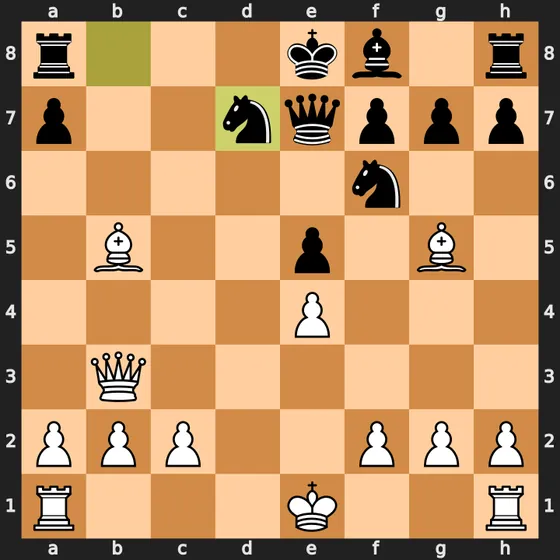
After White plays 11. Bxb5+, Black's king is in check. Black can block the check with a knight on d7, but both the knight on b8 and the knight on f6 can legally jump to d7. Writing 11... Nd7 is ambiguous; python-chess, which we used to check the game, rejects it with an "ambiguous SAN" error. Writing 11... Nbd7 specifies that the knight on the b-file moved, making the notation valid.
What We Saw When a Move Was Wrong
When an imported PGN contains an illegal move, Chess.com rejects the entire file with a generic error banner, whereas Lichess and the ScanChess PGN validator pinpoint the exact move and ply that failed.
We tested all three tools on 2026-09-30 with a demo scoresheet of the 1858 Opera Game that we filled in ourselves. It contains a deliberate handwriting misread at move 7: Black's move 7... Qe7 was written with almost no top bar on the digit 7, reading as the illegal move 7... Qe1.
Here is how each platform responded:
- Chess.com: Nothing loaded onto the board. The interface displayed a red banner stating: "The FEN or PGN you entered couldn't be loaded. Double-check for formatting errors or illegal moves and try again." The banner does not identify which move or ply failed. (Entering German notation like
1. c4 Sf6produced the same generic error banner.) - Lichess: Nothing loaded, and a red message under the PGN box named the exact move and ply: "PGN error: Can't play Qe1 at move 7, ply 14", leaving the board at the starting position.
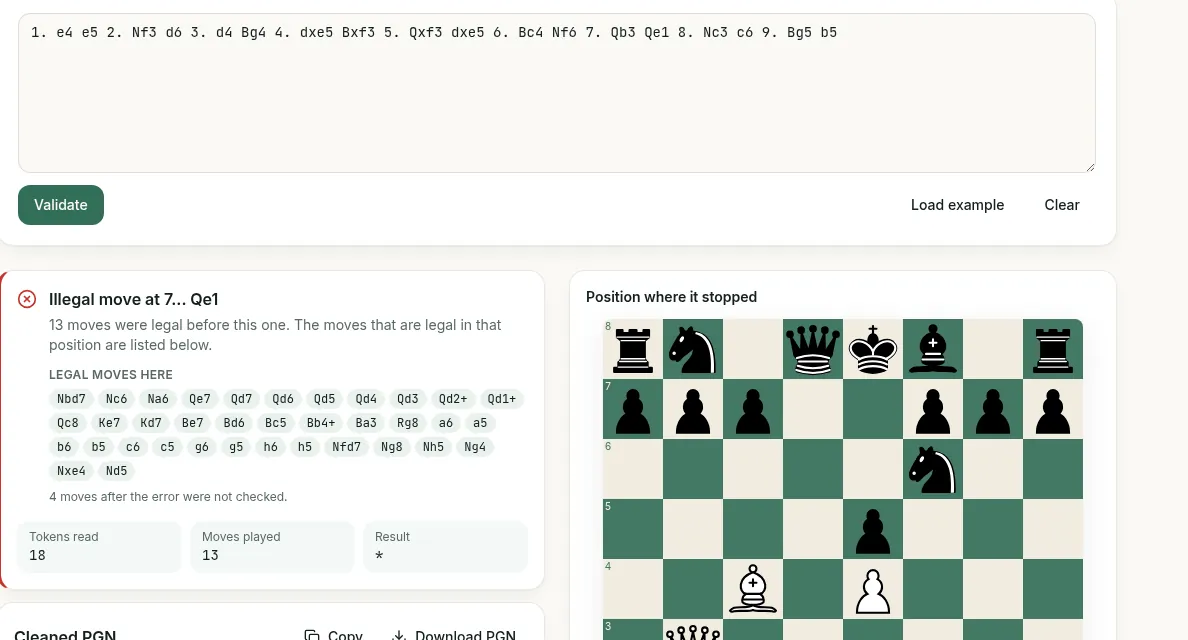
- ScanChess PGN Validator: We pasted the first nine moves (with the misread) into the PGN validator. It reported "Illegal move at 7... Qe1" and noted that "13 moves were legal before this one". It displayed a "LEGAL MOVES HERE" list (including
Qe7), showed the board and FEN where the replay stopped, and noted that "4 moves after the error were not checked".

Getting a Clean PGN from a Paper Scoresheet
Most import errors occur when transcribing moves by hand from a physical tournament scoresheet into a text file. Hand-typing 40 or more move pairs often introduces mistyped coordinates, skipped moves, or ambiguous notation that breaks Chess.com's parser.
Instead of manual typing, the ScanChess scanner digitizes handwritten scoresheets from photos (up to 10 images per game, 2 credits per scoresheet scan). ScanChess recognizes handwritten notation and replays every move on an internal board to verify legality against the rules of chess. Any illegal move is marked red, while uncertain readings are marked amber with rule-legal alternatives suggested on screen.
Once you confirm any flagged moves, export the validated file and paste it directly into the Analysis board. For step-by-step instructions on photographing and scanning your scoresheet, see convert handwritten scoresheet to PGN. If you prefer analyzing on other platforms, the process is very similar; see import PGN to Lichess.