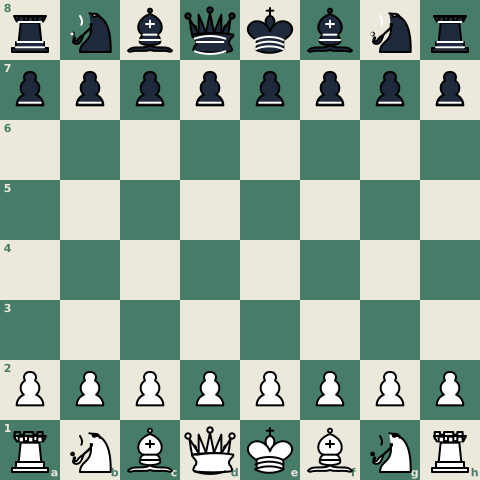

To share a chess game online, select your format based on your recipient's device and the depth of review you need. Coaches and study partners need interactive links or studies that preserve variations and annotations. Friends in mobile messaging apps need direct web links or animated clips because smartphones cannot open raw .pgn files natively. Database users and desktop software require the raw PGN text.
Choosing the Right Sharing Format
| Sharing Scenario | Best Format | Primary Platform / Tool | Why It Fits |
|---|---|---|---|
| Coaching session or deep review | Lichess Study or Chess.com Library | Lichess Study / Chess.com | Retains branching variations, arrows, comments, and allows live board sync |
| Quick replay in chat or messaging | Web link (dedicated URL) | lichess.org/paste / Chess.com / ScanChess PGN Viewer | Recipient clicks once to replay on an interactive board without installing apps |
| Mobile group chat (WhatsApp, WeChat) | Web link or animated GIF | PGN to GIF / ScanChess share link | Solves the mobile .pgn roadblock with zero-tap visual previews |
| Social media or forum (Reddit, Discord) | Animated GIF or FEN diagram | PGN to GIF / FEN to image | Autoplays highlight moves directly in the social feed |
| Archiving in chess software / engine | .pgn text file | Email / Cloud storage / PGN validator | Universal plain-text standard for ChessBase, Scid, and local engines |
| Single puzzle, trap, or endgame | FEN string or diagram | Board editor / FEN to image | Compact one-line snapshot of an isolated position without move history |
Getting Your Game into a Digital Format First
Before sharing, your game must exist in one of the two standard chess representations:
- PGN (Portable Game Notation) stores an entire game from the first move to the result, including metadata like player names, event, and date. Use PGN whenever someone needs to replay the full sequence.
- FEN (Forsyth-Edwards Notation) captures a single board position in one line of text using six fields. Use FEN when discussing an isolated tactical puzzle or endgame setup.
If your game was played over the board and exists only on paper, hand-typing forty move pairs into a text editor often introduces typos and illegal moves. Uploading a photo of the scoresheet to ScanChess digitizes the handwriting, validates every move against the rules of chess, and produces an exportable PGN file. (If you are new to notation standards, see what is PGN and what is FEN).
Method 1: Share an Interactive Web Link or Study
For most recipients, an interactive web link is far friendlier than raw text. The recipient clicks the link and immediately steps through moves on a graphical board.
Temporary Analysis Links vs. Cloud Studies
A critical distinction when sharing games online is whether you need a single-game replay or collaborative coaching:
Single-Game Import Links (Quick Replays):
- Lichess: Open lichess.org/paste (or Tools → Import game), paste your PGN, and click Import game. Lichess assigns a permanent URL with free computer evaluation that anyone can view without an account. (Follow the walkthrough in import PGN to Lichess.)
- Chess.com: Open the Analysis page, select Load PGN, paste the game, and click Load. You can copy the browser URL or click the share icon to send the analysis link. (Detailed in Import PGN to Chess.com.) Note that menu labels on third-party sites may shift across platform updates. Limitation: Single-game imports provide a clean replay, but if you explore sidelines or add comments in a local session, those additions are not automatically stored for your recipient.
Cloud Studies (Coaching and Multi-Branch Work): When working with a coach, student, or study partner, use a persistent container such as a Lichess Study or Chess.com Library:
- Preserves branching variations ("what if I played 10...Nxd5 instead?").
- Retains drawn board arrows and textual annotations explaining key tactical turning points.
- Supports multiple chapters to organize a multi-round weekend event or a complete opening repertoire.
- Features real-time synchronization so student and coach look at the identical position simultaneously during a lesson. For a full coaching setup, see scoresheet to Lichess study.
Embed on a Website or Club Blog
If you run a club website, blog, or newsletter, embed an interactive board directly into the article so readers replay the game without leaving your page. Paste your game into the free ScanChess PGN Viewer, click Embed, and paste the generated <iframe> snippet into a WordPress Custom HTML block or raw HTML file. For CMS specifics and handling newsletter iframe restrictions, see how to embed a chess board on your website.
Method 2: Send the Raw PGN File
A PGN file is plain text formatted according to the standard chess specification. You can attach a .pgn file to an email, drop it into Google Drive, or copy its contents directly into a text editor.
Here is a minimal, complete PGN:
[Event "Club Championship"]
[Site "Local Club"]
[Date "2026.05.14"]
[Round "1"]
[White "Player, A"]
[Black "Player, B"]
[Result "1-0"]

1. e4 e5 2. Nf3 Nc6 3. Bc4 Bc5 4. c3 Nf6 5. d4 exd4 6. cxd4 Bb4+ 7. Bd2 Bxd2+ 8. Nbxd2 d5 9. exd5 Nxd5 10. Qb3 Nce7 11. O-O O-O 12. Rfe1 c6 13. a4 1-0
- When to send raw PGN: Ideal for desktop chess databases (such as ChessBase or Scid), engine training, or tournament archives.
- The limitation: Retyped moves with notation mistakes—like ambiguous knight moves (
Nd7when two knights can reach d7) or an illegal move from a misread digit—will cause chess parsers to reject the file. (Castling with zeros,0-0, loaded fine in both Lichess and Chess.com when we tested on 2026-09-30.) You can check your file beforehand with our free PGN validator.
Method 3: Share a Single Position via FEN
When the entire game is irrelevant and you only want feedback on a tactical puzzle, an opening position, or a technical endgame, sharing forty moves of notation is unnecessary. A FEN string captures the exact board state in one line of text:
rnbqkbnr/pppppppp/8/8/8/8/PPPPPPPP/RNBQKBNR w KQkq - 0 1
- Set up the position in an analysis tool or the board editor.
- Copy the FEN string from the export or FEN field.
- Paste the line into your chat or email.
Anyone can paste this string into an analysis board to recreate the board state, side to move, castling rights, and en passant status instantly. If you typed it by hand, run it through the FEN validator before sending: one miscounted rank makes it unreadable for everyone you share it with. And if you entered a diagram printed from Black's side as if White were at the bottom, flip the FEN rather than starting again.
Social and Messaging Channel Compatibility
Different communication channels handle chess notation differently. Sending a file attachment on desktop works smoothly, but mobile messaging apps handle files differently.
| Channel / Platform | Best Sharing Format | Common Friction Points | Recommended Practice |
|---|---|---|---|
| WhatsApp, WeChat, Telegram | Web link or animated GIF | Smartphones cannot preview .pgn files natively; raw text looks like cluttered code | Send an interactive Lichess/Chess.com/ScanChess link, or generate an animated GIF |
| Discord | Web link, FEN, or GIF | Raw PGN walls disrupt chat flow | Post a web link; for tactical puzzles, paste FEN or use a server chess bot |
| Reddit (e.g., r/chess) | Animated GIF or image + PGN in comments | Image posts receive higher engagement than bare links | Post an animated GIF or diagram; paste the full PGN into the top comment |
| Email & Cloud Drives | .pgn attachment + web link | Recipient must download the file and have desktop software installed | Attach the .pgn file for archiving, but include an interactive web link for instant viewing |
The Mobile .pgn Roadblock
The most common mistake when sharing a chess game is sending a .pgn file directly to someone reading on a phone. Unlike .pdf or image files, standard mobile operating systems have no default application registered to open .pgn files. When your recipient taps the attachment in WhatsApp or WeChat, they often see an error ("Cannot open file") or an unformatted text dump. Unless you know the recipient has a mobile chess database installed, always send an interactive browser link or an animated GIF.
Visual Sharing: GIFs and Board Diagrams
When sharing on social platforms where users scroll past text quickly, visual assets generate immediate interest:
- Animated GIFs: An animated GIF replays the key moves automatically in a loop without requiring clicks or external apps. You can convert any clean PGN into an animation with PGN to GIF.
- Static Board Diagrams: For tactical positions and "White to play and win" puzzles, convert your position into an image with FEN to image or take a screenshot from the board editor.
Always pair an image or GIF with a PGN link in your caption so players who want to analyze the position deeply can open the moves in an engine.
Step-by-Step Workflow: From Scoresheet to Shared Game
When sharing an over-the-board tournament game, manual transcription is usually the slowest step. The standard digital workflow is:
- Capture the sheet: Take a flat, well-lit photo of your scoresheet after the game.
- Digitize and validate: Upload the photo to the ScanChess scanner. The scanner reads your handwriting, verifies move legality on a virtual board, and flags suspicious or ambiguous moves in amber or red.
- Resolve flagged plies: Confirm any doubtful notation against your scoresheet, then export the verified PGN. (See convert handwritten scoresheet to PGN).
- Choose your destination:
- For coaching: import the PGN into a Lichess Study chapter or Chess.com Library.
- For friends: paste into lichess.org/paste or copy your ScanChess web link and drop it into your chat.
- For club archives: email the validated
.pgnfile to your team captain.
Turn Your Scoresheet into a Shareable Game
The hardest part of sharing a chess game is rarely the sharing; it is getting a paper game into digital form. Every game scanned with the ScanChess scanner also gets its own share link, so for a quick look you can send that link directly and skip the import step altogether.