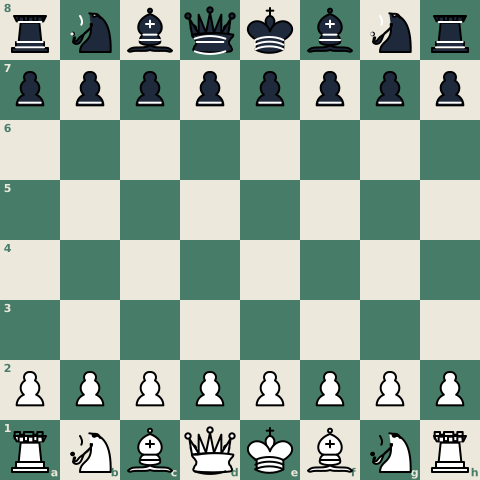

You want readers to click through a game on your page—club recap, coaching post, newsletter—without sending them to Lichess or Chess.com. That is what an embed is for: an interactive board that lives inside your layout.
The fastest path is a single iframe. No plugin, no build step, no React chess library. Paste your PGN into the free ScanChess PGN Viewer, press Embed, and drop the snippet into WordPress, Ghost, or any HTML page.
Whole game or one position?
Pick the format before you pick the tool:
- Whole game (PGN): readers step move by move. Use an interactive embed. This guide.
- One position (FEN): you only need a diagram or a string someone pastes into an analysis board. Use what is FEN, FEN to image, or the share options in how to share a chess game online.
If you are not sure, embed the PGN. A full game always contains every position along the way.
Step 1: Get a clean PGN
You need the moves in Portable Game Notation. Sources that work well:
- Export from Lichess or Chess.com.
- Paste moves you already typed.
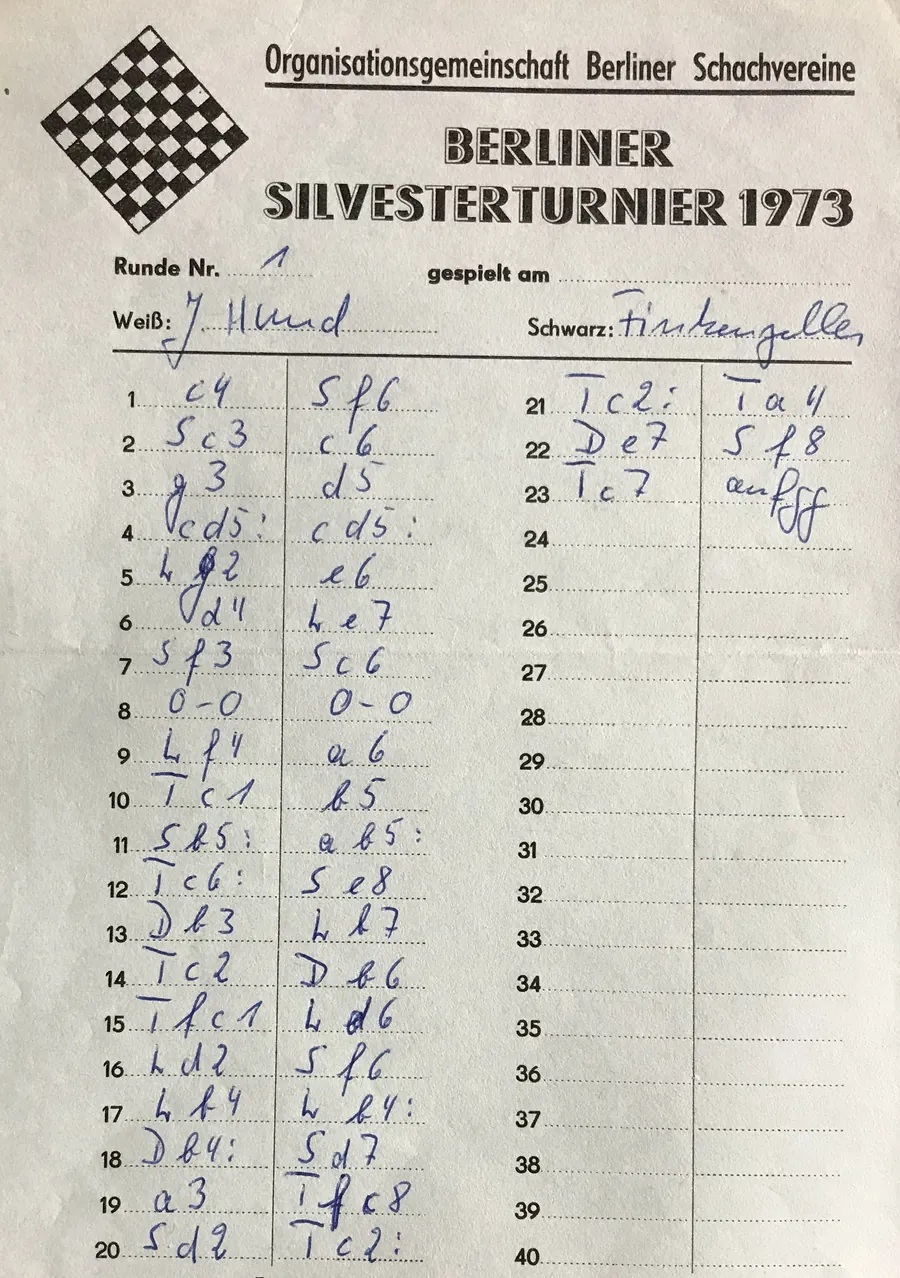
- Photograph a paper scoresheet and digitize it with ScanChess—useful when the game never left the scoresheet.
Illegal or mistyped moves break replays later. If the PGN is shaky, run it through the PGN validator first.
Step 2: Generate the embed snippet
- Open the PGN Viewer.
- Paste your PGN (or load a game you already share from ScanChess).
- Confirm the board replays the way you expect—flip the board if the article is from Black’s point of view.
- Click Embed in the toolbar. The viewer copies an iframe to your clipboard.
A typical snippet looks like this (your src will include your encoded PGN):
<iframe
  src="https://scanchess.com/embed/pgn-viewer?pgn=1.+e4+e5+2.+Nf3+Nc6+3.+Bb5+a6"
  width="640"
  height="560"
  style="border:0;border-radius:12px;width:100%;max-width:100%;aspect-ratio:16/10;"
  allowfullscreen
  loading="lazy">
</iframe>
The /embed/pgn-viewer URL is the frameable surface. Use that path (or the snippet the button gives you), not a normal tool or share page URL—those are blocked from being iframed on purpose.
Step 3: Paste it into your CMS
WordPress (Block Editor)
- Add a Custom HTML block where the board should appear.
- Paste the iframe snippet.
- Preview on desktop and phone, then publish.
No chess plugin is required. The board scales with the width: 100% styles in the snippet.
Ghost
- In the editor, type
/htmland choose an HTML card. - Paste the snippet.
- Preview and publish.
Substack and similar newsletters
Many newsletter editors restrict raw iframes. If the HTML card accepts the snippet, use it. If not, link to the game instead—either the PGN Viewer deep link (/tools/pgn-viewer?pgn=...) or a permanent ScanChess share URL from a scanned game—and say “open the interactive board.” Pairing that link with a static board image from FEN to image or a short PGN to GIF still keeps the post readable in the inbox.
Static sites (Hugo, Astro, Jekyll, plain HTML)
Paste the iframe into the page template or Markdown HTML block. Because it is plain HTML, it does not depend on React, Vue, or a chess npm package.
From a paper scoresheet to an embed
Over-the-board games often start as ink, not a download button:
- Photograph the scoresheet.
- Scan it with ScanChess to get a validated PGN (and usually a share link).
- Open that game in the PGN Viewer or paste the PGN there.
- Press Embed and paste the snippet into the club site or blog.
That path is the ScanChess-shaped version of “type the game by hand, then fight with an embed plugin.”
Tips that save a republish
- Preview the replay before you embed. Wrong side to move or a truncated PGN is obvious on the viewer and invisible in a CMS preview if you skip this step.
- Prefer shorter PGN in the URL when the game is long. Query-string embeds have practical length limits. If the Embed button shortens or reformats the text, keep that version. For archival club pages, a permanent share link is more durable than stuffing fifty moves into the
src. - Mobile width. Keep the snippet’s fluid width styles. Fixed pixel widths that looked fine in a desktop draft often overflow on phones.
- Attribution line. The copied snippet includes a small “powered by ScanChess” line. Leave it if you can; it tells readers where the replay comes from and keeps the tool free to run.
When a static image or GIF is enough
An interactive board is overkill for a one-move puzzle in a chat or a social thumbnail. In those cases:
- FEN to image for a single diagram.
- PGN to GIF for a short animated highlight.
If you later want people to study the full game on your site, come back to the iframe embed.
Optional: self-host for developers
If you control the frontend and prefer not to iframe a hosted player, the open-source chess-board-embed package in the ScanChess repository provides a zero-dependency web component (<chess-board-embed>) you can build and serve yourself. Most club webmasters never need that path—the iframe from the PGN Viewer is enough. Use the component when you want the board assets on your own origin or inside a design system that forbids third-party frames.
Related guides
- How to share a chess game online — PGN files, links, FEN, and when not to embed.
- What is PGN? — tags, movetext, and what a valid file looks like.
- Convert a handwritten scoresheet to PGN — paper to digital before you embed.
- Free tool: PGN Viewer — replay, share, and copy the embed snippet.