
Short answer: upload the image at scanchess.com/dashboard/scan/board, check the squares ScanChess highlights, choose the side to move, and copy the FEN. One board image costs 1 credit; a new account's 10 free credits cover ten positions.
FEN (Forsyth–Edwards Notation) is the one-line description of a chess position that every engine, database and analysis board accepts. Typing one by hand from a picture means counting empty squares rank by rank, and one slip gives you a different position. Converting the image does the counting for you, and leaves you only the part a picture cannot answer.
Step 1: Pick the right image
What converts cleanly:
- Screenshots of an online board (Lichess, Chess.com, a video frame). These are the most reliable input.
- 2D diagrams from a book, a magazine or a puzzle site, printed or on screen.
- Photos of a real board taken from directly above, with all 64 squares in the frame and even light.
What needs more checking: photos taken at an angle, where tall pieces hide the squares behind them, and boards with glare or deep shadow. They still convert, but expect to fix a piece or two.
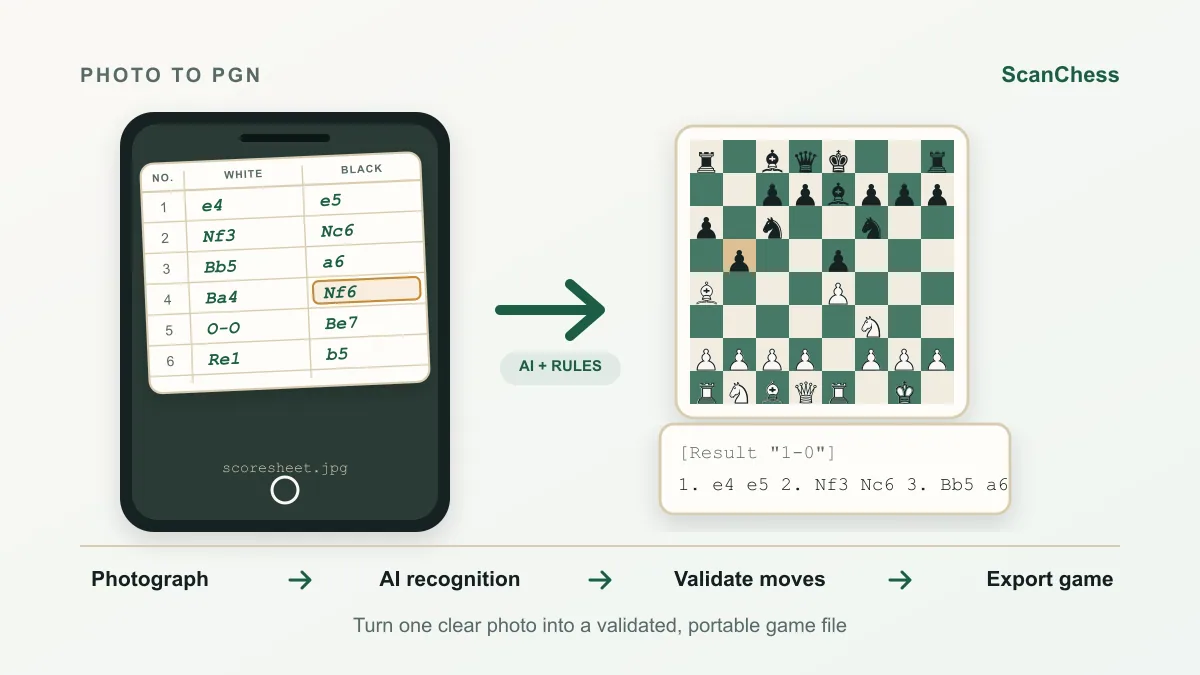
One image holds one position. For the moves of a whole game, scan the scoresheet instead — see Convert a chess scoresheet to PGN.
Step 2: Upload or paste it
Open the board scanner and drop the file, choose it from your device, or paste a screenshot straight from the clipboard. JPG, PNG and WebP are accepted, up to 15 MB. There is a labelled example on the page if you want to see a result before using your own image.
If the board is on a web page, the ScanChess browser extension skips the screenshot step: drag a box around the board and the FEN appears in the side panel.
Step 3: Check the position
The result loads onto a board on screen, with any square the model was unsure about highlighted. Compare those squares with your image first — a piece on a dark or glare-covered square is the usual misread. Drag pieces to fix them.
Then answer the question no image can: whose move is it? Board orientation does not tell you. Set the side to move, and if castling rights or an en passant square matter for the position, set them in the board editor — free, no account needed.
Step 4: Copy or analyze the FEN
Copy the FEN, or open the position straight on Lichess to let an engine look at it. The same string pastes into the Chess.com analysis board, ChessBase, SCID or any other chess program. To turn the position into a picture for a post or a worksheet, FEN to Image renders it as a PNG or SVG.
Signed in, you can also save the position to your library of positions, to come back to it later.
Typing FEN by hand vs converting the image
| By hand | Image to FEN | |
|---|---|---|
| Time for a middlegame position | A few minutes | Seconds, plus a check |
| Typical error | Wrong count of empty squares | A misread piece on a highlighted square |
| Side to move, castling | You set them | You set them |
| Cost | Free | 1 credit |
For a simple endgame with five pieces, typing the FEN in the board editor is just as quick. For a crowded middlegame, or a book full of puzzles, converting the image saves the counting.
Related
- What is FEN? — the six fields of a FEN string, explained
- Chess board scanner — board photo or scoresheet scan: which one you want
- How to share a chess game online — when to send a FEN, a PGN or a link